Latest Postings
April 16 2018
June 17 2015
Let ISInc start your organization with a free trial and get Office 365 up and running in your organization easily. The trial will let your users experience the value that Office 365 can bring to them. Begin your Office 365 experience with helpful scenarios and how-to documentation for your users and IT professionals – all from within your own Office 365 environment.
Ask an ISInc representative for information on how Office 365 can save your organization on hardware and IT support costs!
August 30 2011
While working remotely I noticed my bandwidth would drop when I connected to our VPN. It appeared that all internet packets were being routed through our VPN connection. While this normally wouldn’t be a problem, I often found myself downloading large files and my connection performance was limited to the available bandwidth to the VPN connection. That’s when I learned about what a “split tunnel” vpn connection is. I wrote this article to walk you through the process of setting up your VPN to take advantage of this option in Windows Networking.
With a “split tunnel vpn” connection, the internet traffic is routed through the local gateway connection. All other network traffic works through the vpn connection as you would expect. This is a feature that is available with Windows Vista and XP PPTP VPN connections, but it isn’t the default setting.
Here is how you configure your VPN connection to use the local gateway:
Step 1
Right click on your VPN connection and choose “properties”
Step 2
Click on the “Networking” tab. This is where we will need to make changes to the TCP/IP settings for your VPN connection. If you are using V6 IP addresses or V4, you’ll need to make the change in both locations just to be sure.
Step 3
Click on the “Advanced” button to get to the Advanced TCP/IP options
Step 4
The VPN connection by default configures all packets to route to the remote server’s gateway. We want to turn this option off by clicking on the “Use default gateway on remote network” option.
That’s it! Once you have made those changes you will notice your internet packets are no longer automatically routing through the VPN server.

August 18 2011

In this post we will look at how to create new document content types and insert the metadata fields in the header of the Word Document.
Creating the Content Type
1. Make sure you are in the site where you want to create the content type. Click Site Actions | Site Settings.
2. In the Galleries section click Site Content Types.
3. Click Create.
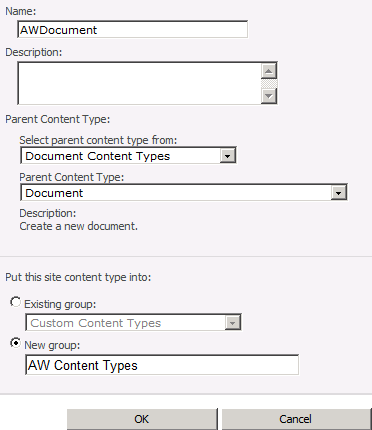
4. Fill in the appropriate information on the form to create a new content Type. Give the content type a name.
Make sure to select “Document Content Types” on the Select parent content type from drop down menu. Make sure to select “Document” in the Parent Content Type drop down menu. Put the new content type in either an existing or new group. Click OK.
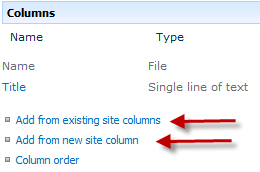
5. Scroll down to the bottom of the new site content type property page to find the columns section. Here you can either create new site columns or add an existing site column. The column will then be associated to the content type.
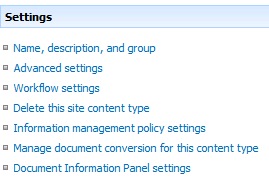
6. Content types can also have workflow, retention schedules and modified document information panels.
7. Upload a document template to
SharePoint Training
July 18 2011
You might be wondering, what is Microsoft Office 365?
It’s familiar Microsoft Office collaboration and productivity tools delivered through the cloud. Everyone can work together easily with anywhere access to email, web conferencing, documents, and calendars. It includes business-class security and is backed by Microsoft. Whether you are a small business or multinational enterprise, Office 365 offers plans designed to fit your organization’s unique needs.
There are two plan families available:
Plan P – for professionals/small businesses
Plan E – for midsize businesses and enterprises.
Microsoft Office 365 for professionals and small businesses
This service plan is designed for up to 25 employees who want:
•A solution without dedicated IT staff
•Essential email, calendar, and website services
•Free online community support
•Month-to-month subscription
Microsoft Office 365 for midsize businesses and enterprises
This service plan is great for any size organization that wants:
•Advanced IT configuration and control
•Office Professional Plus, Active Directory or advanced archiving
•24×7 IT Administrator support
•Choice between monthly and annual contracts
Please contact an ISInc account representative for more information, or email [email protected].
January 15 2009
Do you have staff in remote locations, and find it difficult to get them the training they need? There comes a time when your resource is too valuable to send off site for a class. This is where ISInc’s e-Learning can come into play. Now your students can access the same classes via their desktop computer.
ISInc’s e-Learning training is live, interactive online training for those who would like to attend one of our face-to-face instructor-led training courses without leaving their offices, homes or classrooms. Learners can listen to the presentation, ask questions, hear others’ questions and get live answers, all from wherever they choose. They can engage in discussions with others in the physical classroom and throughout the country who are involved in the same class session.
ISInc’s e-Learning training blends the best from traditional face-to-face instructor-led training with the latest in conferencing technology, allowing us to deliver live training to multiple locations at one time. This model is based on our over 27 years experience as trainers and the general premise that the classroom is the foundation of a great training experience.
All courses offered at ISInc can be taken online via our live e-Learning training using Microsoft Lync. So, if you have employees in remote offices that you are trying to schedule for IT training, consider ISInc e-Learning Training. Please contact us for more information.
For more information on our e-learning and to view a video on how it all works, visit our e-learning page here.
November 7 2008
If you spend any time coding CSS from scratch or debugging existing stylesheets, you know how tricky it can be to find that pesky error! Whether it is getting IE6 to play nice or just understanding where all that white space is coming from, these Firefox add-ons should help you do the job better and faster. I’ve only chosen a couple of my favorite add-ons and my favorite features of each. Feel free to include your favorite features or add-ons in the comments as this list is anything but exhaustive.
The Web Developer Toolbar by Chris Pederick has many useful features like an easy-access javascript disabler, a simple window resize to test 800×600 screen resolution, and an option to view all of the stylesheets associated with a page (easily searchable!).
One of my favorite features, however, is surprisingly simple and incredibly useful. Using the Outline menu, you can outline any block level element on the page with just two clicks of the mouse. Personally, I can end up spending minutes of wasted time adding borders to elements here and there trying to figure out why I am seeing too much or too little space in a certain area. No need to do that anymore with this feature. It outlines your div tags for you, making spatial debugging a much simpler and faster process.
My other favorite feature in the web developer toolbar is the quick access to the W3C XHTML validator. It will upload your local file and display your pass/fail status quickly and efficiently!
Next on my list is the Firebug add-on which again, has a wealth of useful and time-saving debugging tools. My favorite, by far, is what I’ve coined as their CSS specificity revealer. Ok, you got me, I just made that up. The feature I’m referring to goes something like this:
1. You add some CSS rule
2. Your CSS rule doesn’t work
3. You can’t figure out why it doesn’t work
4. You wish to yourself there was some tool out there that could tell you if someone wrote a rule that is somehow overriding your own
5. You realize that firebug has that very feature and you’re going to use it now!
Launch firebug after you’ve installed it and click the “Inspect” button at the top of the console. Now, watch the Style panel on the right hand side. As you mouse over different elements on the page, you will see which rules apply to which elements. You will also see which rules are being overridden by others as evidenced by the line through.
For instance, in the above example, the #description rule is overriding our normal <p> tag line height of 1.4em because #description is an ID (which will always have a higher specificity than a non-ID rule).
Personally, I think this feature of firebug makes it one of the best CSS debugging tools out there.
And remember, feel free to leave me some tips and tricks in the comments section if you have any!